项目url:https://github.com/Yin-Hongwei/music-website
1. 下载
git clone https://github.com/Yin-Hongwei/music-website.git
2. 搭建环境
用于安装docker,docker便于管理下载的容器及软件。
- 使用docker下载安装redis
1. 下载wsl2
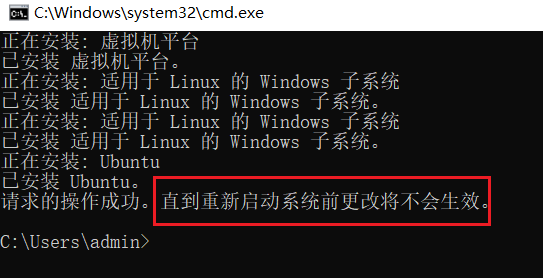
在 cmd 输入:wsl --install
安装好后重新启动
2. 安装ubuntu
切换wsl2内核
C:\Users\admin>wsl --set-default-version 2
有关与 WSL 2 关键区别的信息,请访问 https://aka.ms/wsl2

操作成功完成。
切换后下载ubuntu
wsl --install Ubuntu --name my --location E:\ubuntu下载好后文件夹会弹出linux,且自动安装gui界面。
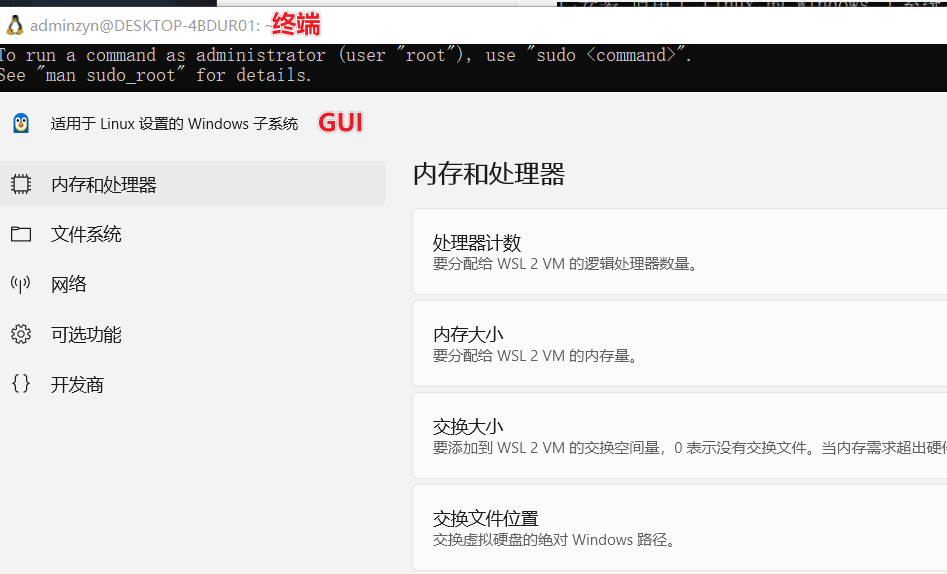
这个wsl2企鹅ui不好看)🐧
3. 配置
配置完成后先修改root密码
adminzyn@DESKTOP-4BDUR01:~$ sudo passwd root
[sudo] password for adminzyn:
New password:
Retype new password:
passwd: password updated successfully
adminzyn@DESKTOP-4BDUR01:~$
切换root用户
adminzyn@DESKTOP-4BDUR01:/etc$ sudo su
root@DESKTOP-4BDUR01:/etc#前往/etc/ wsl.conf下更改文件
[boot]
systemd=true

[user]
default=adminzyn

[wsl2]
memory = 4GB #内存
processors = 4 # CPU数量
defaultVhdSize = 30GB #虚拟硬盘
镜像源更换:
换源脚本:
bash <(curl -sSL https://linuxmirrors.cn/main.sh)4. docker
安装地址:WSL | Docker 文档 — WSL | Docker Docs
教程:WSL 上的 Docker 容器入门 | Microsoft Learn
安装好后记得勾选和wsl一起使用
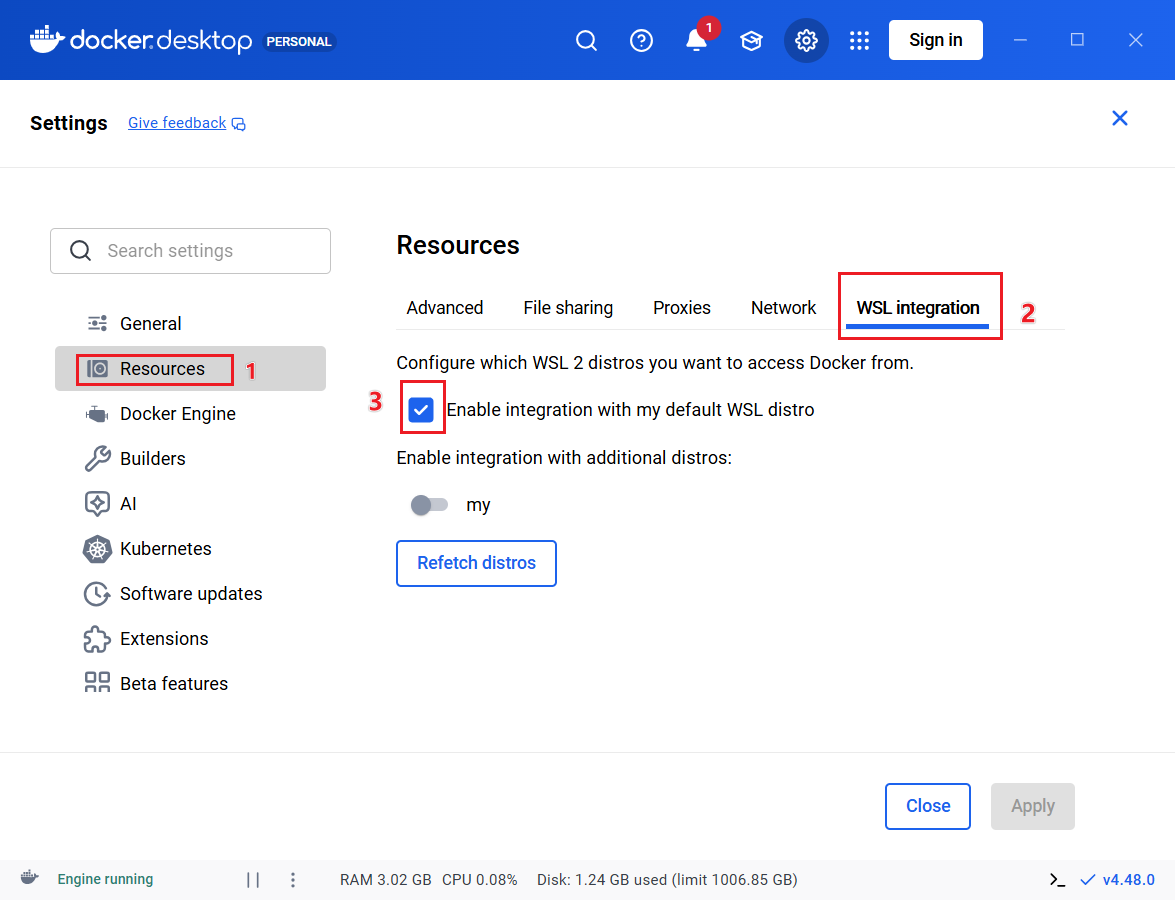
之后使用wsl的bash验证是否安装成功。
这一步开始使用tabby软件
adminzyn@DESKTOP-4BDUR01:/mnt/c/Users/admin$ docker --version
Docker version 28.5.1, build e180ab8
adminzyn@DESKTOP-4BDUR01:/mnt/c/Users/admin$ docker run hello-world
Unable to find image 'hello-world:latest' locally
latest: Pulling from library/hello-world
17eec7bbc9d7: Pull complete
Digest: sha256:6dc565aa630927052111f823c303948cf83670a3903ffa3849f1488ab517f891
Status: Downloaded newer image for hello-world:latest

Hello from Docker!
This message shows that your installation appears to be working correctly.

To generate this message, Docker took the following steps:
 1. The Docker client contacted the Docker daemon.
 2. The Docker daemon pulled the "hello-world" image from the Docker Hub.
    (amd64)
 3. The Docker daemon created a new container from that image which runs the
    executable that produces the output you are currently reading.
 4. The Docker daemon streamed that output to the Docker client, which sent it
    to your terminal.

To try something more ambitious, you can run an Ubuntu container with:
 $ docker run -it ubuntu bash

Share images, automate workflows, and more with a free Docker ID:
 https://hub.docker.com/

For more examples and ideas, visit:
 https://docs.docker.com/get-started/
5. radis
教程:Docker 安装 Redis 容器 (完整详细版) – 鹏星 – 博客园
使用docker命令下拉并启动:
#创建:
adminzyn@DESKTOP-4BDUR01:/mnt/c/Users/admin/redis_yaml$ docker run \
--restart=always \
--log-opt max-size=100m \
--log-opt max-file=2 \
-p 6379:6379 \
--name redis \
-v /opt/redis/conf/redis.conf:/etc/redis/redis.conf  \
-v /opt/redis/data:/data \
-d redis redis-server /etc/redis/redis.conf \
--appendonly yes \
--requirepass 123456  #密码,redis默认是没有用户名

# 查看并删除容器
adminzyn@DESKTOP-4BDUR01:/mnt/c/Users/admin/redis_yaml$ docker ps
CONTAINER ID   IMAGE          COMMAND                  CREATED          STATUS          PORTS
                             NAMES
4a787d7d9f7a   redis:alpine   "docker-entrypoint.s…"   29 seconds ago   Up 29 seconds   0.0.0.0:6379->6379/tcp, [::]:6379->6379/tcp   myredis
adminzyn@DESKTOP-4BDUR01:/mnt/c/Users/admin/redis_yaml$ docker rm 4a787d7d9f7a
4a787d7d9f7a
对redis的配置进行修改:
# 修改 /opt/redis/conf/redis.conf
protected-mode no
bind 0.0.0.0
docker命令:
docker run [容器id] #生成一个再启动
docker rm [容器id] #删除容器
docker exet -it [容器id] /bin/bash  #之前使用的docker在启用,并使用bash打开
验证redis是否安装成功:
adminzyn@DESKTOP-4BDUR01:/mnt/c/Users/admin$ docker exec -it redis redis-cli -a 123456
Warning: Using a password with '-a' or '-u' option on the command line interface may not be safe.
127.0.0.1:6379> ping
PONG
127.0.0.1:6379> info server
# Server
6. 连接修改项目文件
1. 导入
- 创建数据库
music
将 music-website/music-server/sql 文件夹中的 tp_music.sql 文件导入数据库。
2. 修改配置
进入文件,在后边添加上数据库的名字和密码,方便访问获取里边的数据。
spring.datasource.username = root
spring.datasource.password = 123456
3. 启动项目
进入music-server文件夹
-
使用mvn启动管理端
-
进入 music-server 文件夹
-
mvn spring-boot:run // 前提装了 maven
-
-
启动客户端
-
进入 music-client 目录
-
npm install // 安装依赖 -
npm run serve // 启动前台项目
-
-
-
启动管理端
-
进入music-manage 目录
-
npm install // 安装依赖 -
npm run serve // 启动前台项目
-
进入wls
-
启动redis
adminzyn@DESKTOP-4BDUR01:/mnt/c/Users/admin$ docker exec -it redis redis-cli -a 123456 Warning: Using a password with '-a' or '-u' option on the command line interface may not be safe. 127.0.0.1:6379> pong (error) ERR unknown command 'pong', with args beginning with: 127.0.0.1:6379> ping PONG -
检测端口
在cmd里查看端口是否被占用
F:\project\vue_spring_music\source\music-website\music-server>netstat -ano | findstr :6379
TCP    0.0.0.0:6379           0.0.0.0:0              LISTENING       7732
TCP    [::]:6379              [::]:0                 LISTENING       7732
TCP    [::1]:6379             [::]:0                 LISTENING       18448
报错:
1. 下拉项目不成功
$ git clone [email protected]:Yin-Hongwei/music-website.git
Cloning into 'music-website'...
ssh: connect to host github.com port 22: Connection refused
fatal: Could not read from remote repository.

Please make sure you have the correct access rights
and the repository exists.
解决方法:
去github的code选项中复制链接:
admin@DESKTOP-4BDUR01 MINGW64 /f/project/vue_spring_music/source
$ git clone https://github.com/Yin-Hongwei/music-website.git
Cloning into 'music-website'...
remote: Enumerating objects: 5953, done.
remote: Counting objects: 100% (1226/1226), done.
remote: Compressing objects: 100% (361/361), done.
Receiving objects:  12% (771/5953), 10.69 MiB | 95.00 KiB/s
2. 部署后打开网页报错
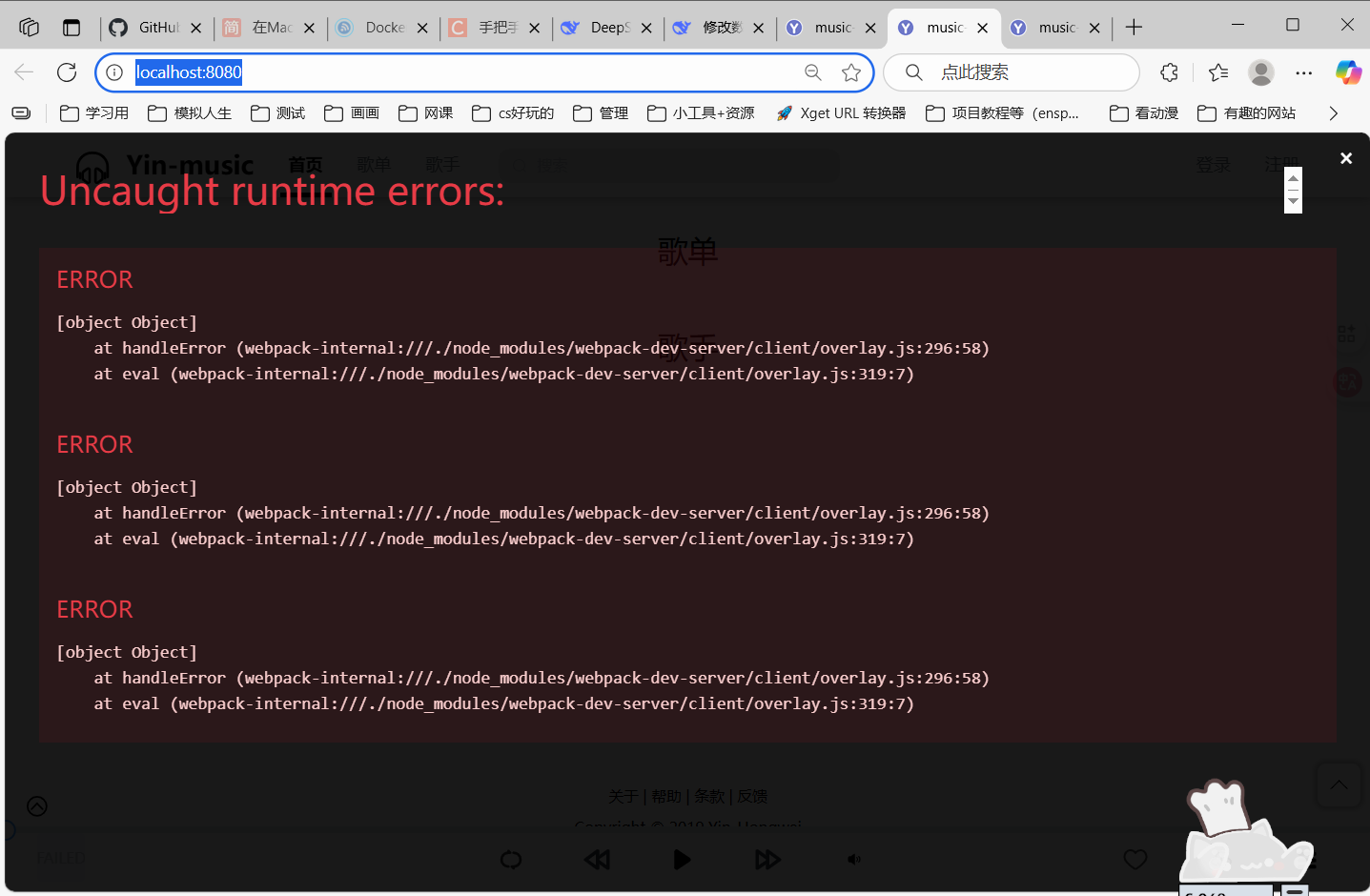
解决方法:
- 检查后端端口是否开启
F:\project\vue_spring_music\source\music-website\music-server>netstat -ano | findstr :8888
  TCP    0.0.0.0:8888           0.0.0.0:0              LISTENING       19972
  TCP    [::]:8888              [::]:0                 LISTENING       19972
开了
- 数据库
把总项目在终端报的错输入给ai,可得:
java.sql.SQLSyntaxErrorException: Unknown database 'tp_music'意思是:MySQL 中不存在名为 tp_music 的数据库。
问题分析
- 数据库不存在:MySQL 服务器中没有创建
tp_music数据库 - 连接配置:应用程序配置了连接
tp_music数据库,但该数据库不存在
回去创建一个tp_music数据库或者更改数据库连接配置即可。
你这家伙又在咕咕咕